
Workstation Terminal: Scan, Display, Report On Site
A workstation terminal is not a shrunken PC; it is a working tool on the production line. It must stay fixed where the operator stands, keep running amid oil and dust, and finish the operation with one scan. So the selection order is: how the operator stands first, what the interface shows second, what software runs last.
Workstation terminal vs industrial PC vs tablet with scanner: the differences
| Workstation terminal (XT802 series) | Industrial PC + monitor | Tablet + scanner gun | |
|---|---|---|---|
| Form | Screen, mainboard and engine in one | PC and screen separate | Tablet + external scanner + bracket |
| Footprint | One bracket | PC spot + screen spot | Tablet bracket + scanner holder |
| Scanning | Built-in engine, scan under the screen | External scanner (USB) | External scanner (Bluetooth or USB) |
| Continuous Operation | Fanless industrial mainboard, 0~50℃ | Depends on the PC | Consumer grade, prone to heating over long runs |
| Batch Management | One image, one configuration | OS installed unit by unit | Configured unit by unit, mixed models |
| Installation | Z / VESA / embedded | Needs cabinet or bench space | Fixture depends on third party |
Step 1: How the Operator Stands
Standing work, screen at chest height
Screen center 1.2-1.4m off the floor, 40-60cm from the operator. The 8 inch portrait or 10.1 inch is most ergonomic; clamp the bracket to the line post and run cables down the post into the trunking.
Seated work, screen on the bench
Screen center 25-35cm above the bench, tilted back slightly. The 10.1 and 15.6 inch landscape screens suit inspection forms; fix with base or swing arm; a keyboard can be attached.
Embedded in the equipment panel
Cut out at 242×173mm (10.1 inch) with 5mm clearance around and 20mm cooling space behind the backplate. Suited to equipment builders integrating the screen into their machines.
Large screen on the wall, viewed by many
Screen center 1.5-1.6m off the floor, viewers 2-5m away. Use 15.6 or 21.5 inch, enlarge fonts to at least 1/8 of screen height, and avoid dense tables.
Step 2: The Interface Decides the Screen Size
| Interface Content | Screen | Reason |
|---|---|---|
| Work order number + quantity + confirm button | 5 inch XT802C | Four content blocks fit on one portrait screen |
| Production reporting + one process diagram | 8 inch XT802D | Diagram and form on one screen, no switching back and forth |
| Multi-column parameters + verdict | 10.1 inch XT802E | With many table columns, 8 inch needs horizontal scrolling |
| Detailed process diagrams / videos / multi-operation | 15.6 inch XT802F | Landscape side by side, readable within 2m |
| Long lists / portrait queue calling | 21.5 inch XTCM215 | 1080×1920 portrait, many rows |
Step 3: The Software Decides the OS
- Web-based MES / in-house APP / lightweight dashboards → Android 11 models: fast boot, low maintenance, app whitelist.
- Windows-only software, legacy clients, IE-dependent controls, local print drivers → X86 models (XT802E-X86 / F-X86 / G-X86).
- Keep production and office networks separate → XT802G-X86 dual LAN; each link uses its own port.
- External secondary screen or projector needed → XT802F-X86 with VGA + HDMI.
- On-site receipts or labels required → XTCM320 with built-in 80mm cutter printer, or an external printer on the workstation terminal.
Reporting, Error-Proofing, SOP: What a Workstation Terminal Does on the Line
Production Reporting
Scan the work order or workstation code; the screen brings up the operation and quantity, and confirmation submits it. Offline, data caches locally and catches up by timestamp after recovery.
Error-Proofing
Wrong part number, skipped station, out-of-tolerance quantity, duplicate or missed codes - the screen blocks them with a red frame so defects do not flow to the next station.
SOP
Process diagrams, torque values, inspection points and how-to videos sit on the workstation screen; at changeover, the backend pushes a new version and it takes effect immediately.
Customize per Workstation: Line Stays, Device Adapts
Every workstation differs in post diameter, bench thickness, cutout size and trunking position. We work backward from your dimensions to the bracket and ports: a wall mount plate when the clamp will not grip, a backplate for thin benches, POE when outlets run short. The housing stays the same; fasteners and cable exit follow the site.
- Brackets: Z-type, VESA01, pole clamp, swing arm, floor stand, chosen or adapted to the workstation structure
- Cable exit: Ethernet, power and peripheral cable exit directions can follow the site routing
- Ports: extra serial or USB can be added per project with adapters or configuration changes
- OS and preinstallation: auto-start, app whitelist, desktop icons and boot screen can be customized
- Color and silkscreen: standard silver; other colors and printing customized by batch
FAQ
Does a workstation terminal have to be online?
Not necessarily. Basic production reporting and SOP display run locally, with data stored locally and synced on a schedule; features involving cross-station verification or real-time dashboards need the network. The solution states the offline scope.
How many workstations can one terminal cover?
Usually one per workstation, screen facing the operator; when one person runs two adjacent operations, one terminal with a foot pedal or scan switching works. Shared information for multiple people goes on a 15.6 inch or larger screen mounted on the wall.
What about operator error?
Add confirmation and double checks at the interface level, and foot pedals, workstation codes or staff cards (optional NFC) at the hardware level. Android supports kiosk whitelists; Windows uses restricted accounts with group policy.
The old equipment only has serial ports; can it connect?
Yes. The housing has an RJ11 COM (RS232); use an RJ11-to-DB9 cable for legacy PLCs, weighing instruments and printers; for multiple serial devices use a USB-to-serial Hub and watch for power and address conflicts.
The line needs explosion-proof equipment; do you have a solution?
Standard models are not explosion-proof equipment. Explosion-proof scenarios require selection by zone class or an explosion-proof enclosure; this is project customization and needs the zone classification and gas group.
Can we rent one unit to try first?
For now we start with a sample order: order one unit's configuration, confirm after trial installation, then convert to batch, with the sample credited into the batch order. Rental is discussed separately per project.
Related Models
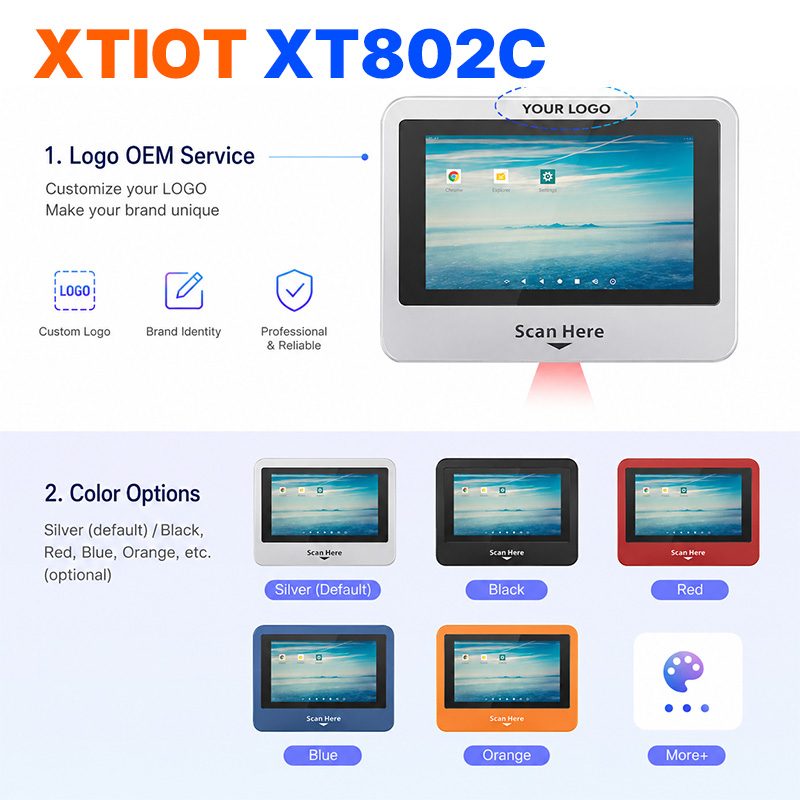
XT802C
XT802C is a 5 inch Android 11 industrial panel PC with 720×1280 portrait display, housing 148×110×40mm, weight 500g.
See specs and selection →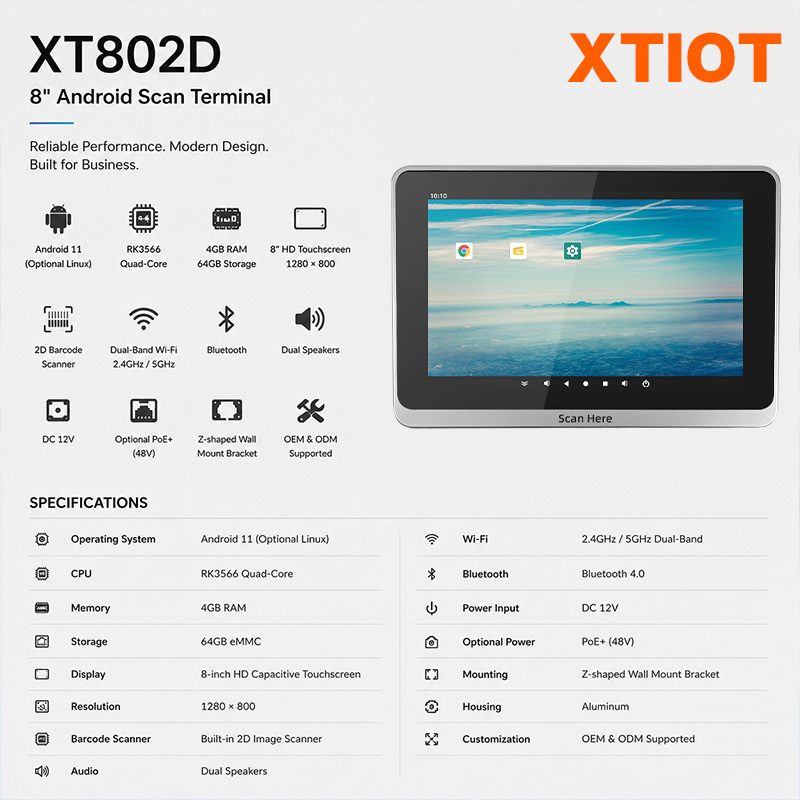
XT802D
XT802D is an 8 inch Android 11 industrial panel PC with 800×1280 portrait display, housing 212×143×37mm, weight 732g.
See specs and selection →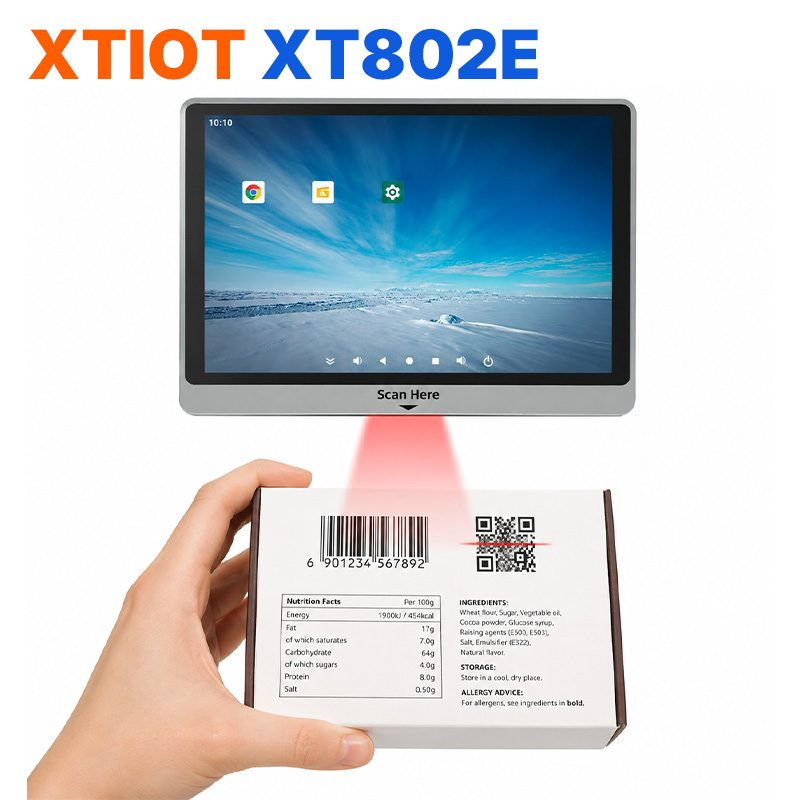
XT802E
XT802E is a 10.1 inch Android 11 industrial panel PC with 800×1280 resolution, housing 242×173×35mm, weight 878g,
See specs and selection →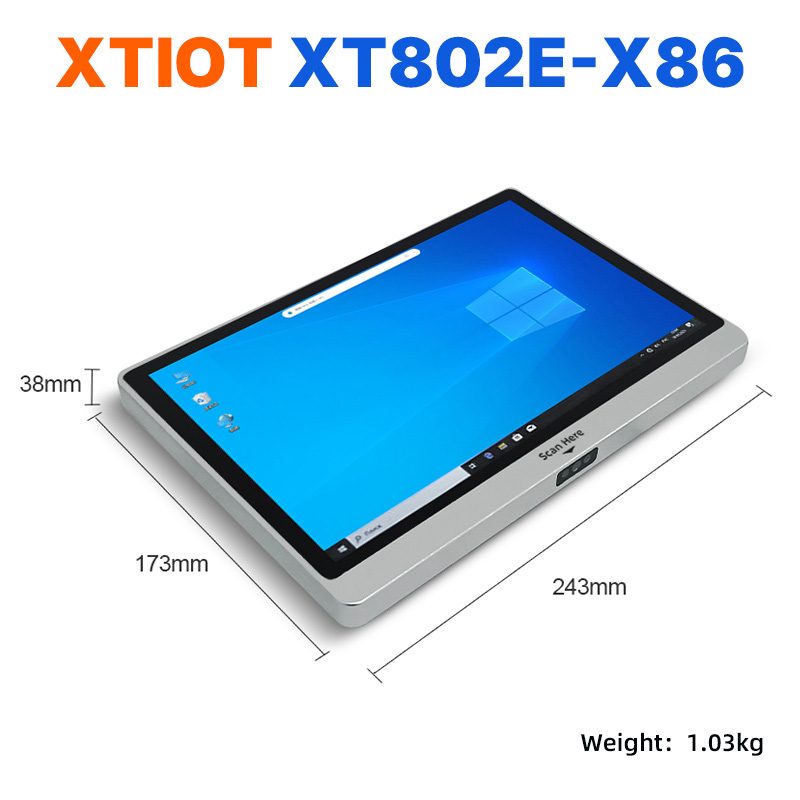
XT802E-X86
XT802E-X86 is a 10.1 inch Windows 10 industrial panel PC with Intel J1900 quad-core 2.0GHz and 4G + 64G,
See specs and selection →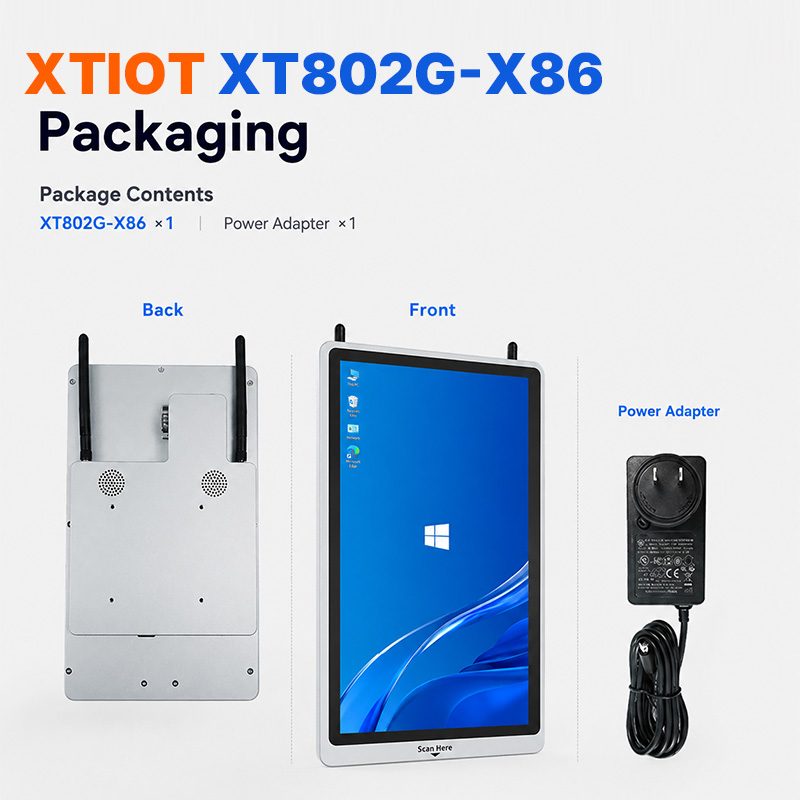
XT802G-X86
XT802G-X86 is an 11.6 inch Windows 10 industrial panel PC with Intel J4125 quad-core and 8G + 128G,
See specs and selection →Describe your workstation and we will provide a configuration you can install directly
Describe the process, cycle time, scanning distance and software environment (MES / ERP / in-house), and we will provide a model, bracket and port proposal within 24 hours.